expand_more

What Are APN Settings?

KeySIM cards use a custom Access Point Name (APN) that must be correctly programmed in your device before you can access mobile data. The APN tells your device how to connect to the mobile network—without the correct settings, your SIM card will not be able to establish a data connection.

APN settings are updated differently depending on the device. We have listed the common device types below with screenshots and instructions to help you get connected quickly.

KeySIM APN Settings

Setting Value
APN key
APN Username NONE (leave blank)
APN Password NONE (leave blank)
Authentication Type NONE
Data Roaming Enable (if available)

Setup Guides by Device

Configuring APN Settings on Android

Android devices allow you to add a custom APN directly through the device settings. Follow the steps below — the screenshots shown are from a Google Pixel device running Android; the menu names may vary slightly on Samsung, Huawei, or other manufacturers, but the process is the same.

1

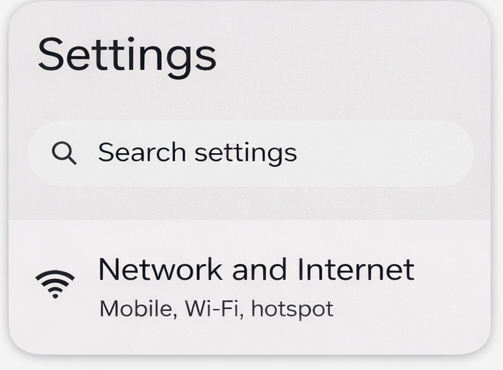
Open Settings and tap Network & Internet

From your device's home screen, open the Settings app and select Network & Internet (sometimes labelled Connections on Samsung devices).

Android Settings screen showing Network and Internet option

2

Tap SIMs

Select the SIMs option to view your installed SIM cards.

Android Network and Internet menu showing SIMs option

3

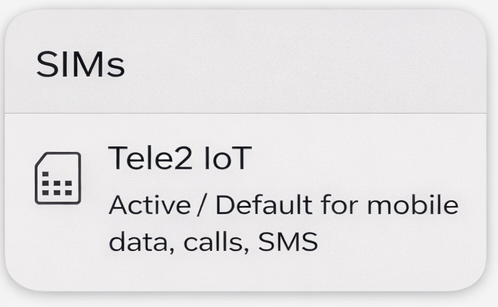
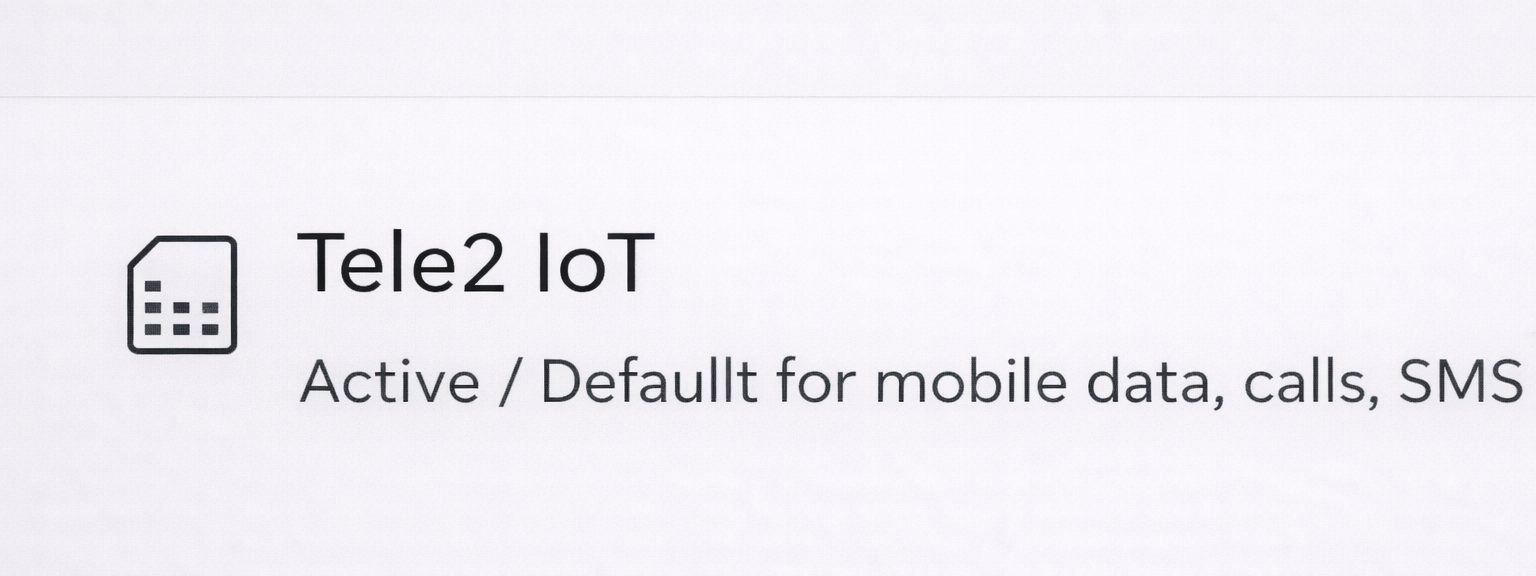
Tap your KeySIM card

Select your KeySIM (Tele2 IoT) from the list of installed SIM cards.

Android SIMs screen showing the KeySIM Tele2 IoT SIM card entry

4

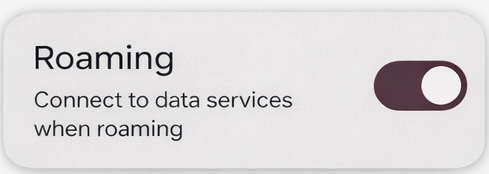
Ensure Roaming is enabled

Toggle Roaming on if you see this option. This ensures your KeySIM can connect across all supported UK networks.

Android SIM settings showing roaming toggle enabled

5

Tap Access Point Names

Scroll down and tap Access Point Names to view and manage APN configurations for this SIM.

Android SIM settings showing Access Point Names option

6

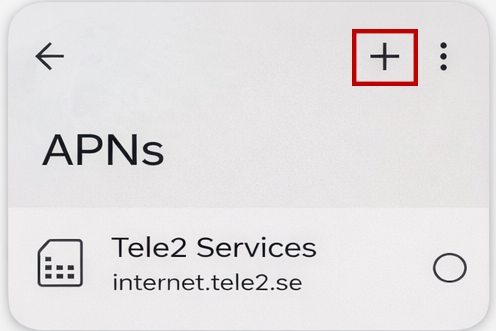
Tap Add New APN (do not edit existing entries)

Tap the + or Add new APN button. Never edit or delete an existing APN — always create a new one.

Android Access Point Names screen with Add new APN button highlighted

7

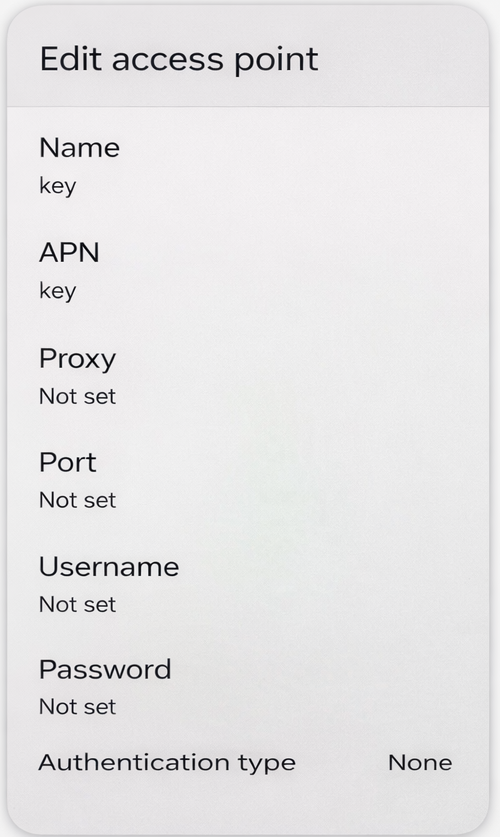
Enter Name and APN as key

Set both the Name and APN fields to key. Leave the Username and Password fields empty (not set).

Android new APN screen showing Name and APN fields set to 'key' with username and password left blank

8

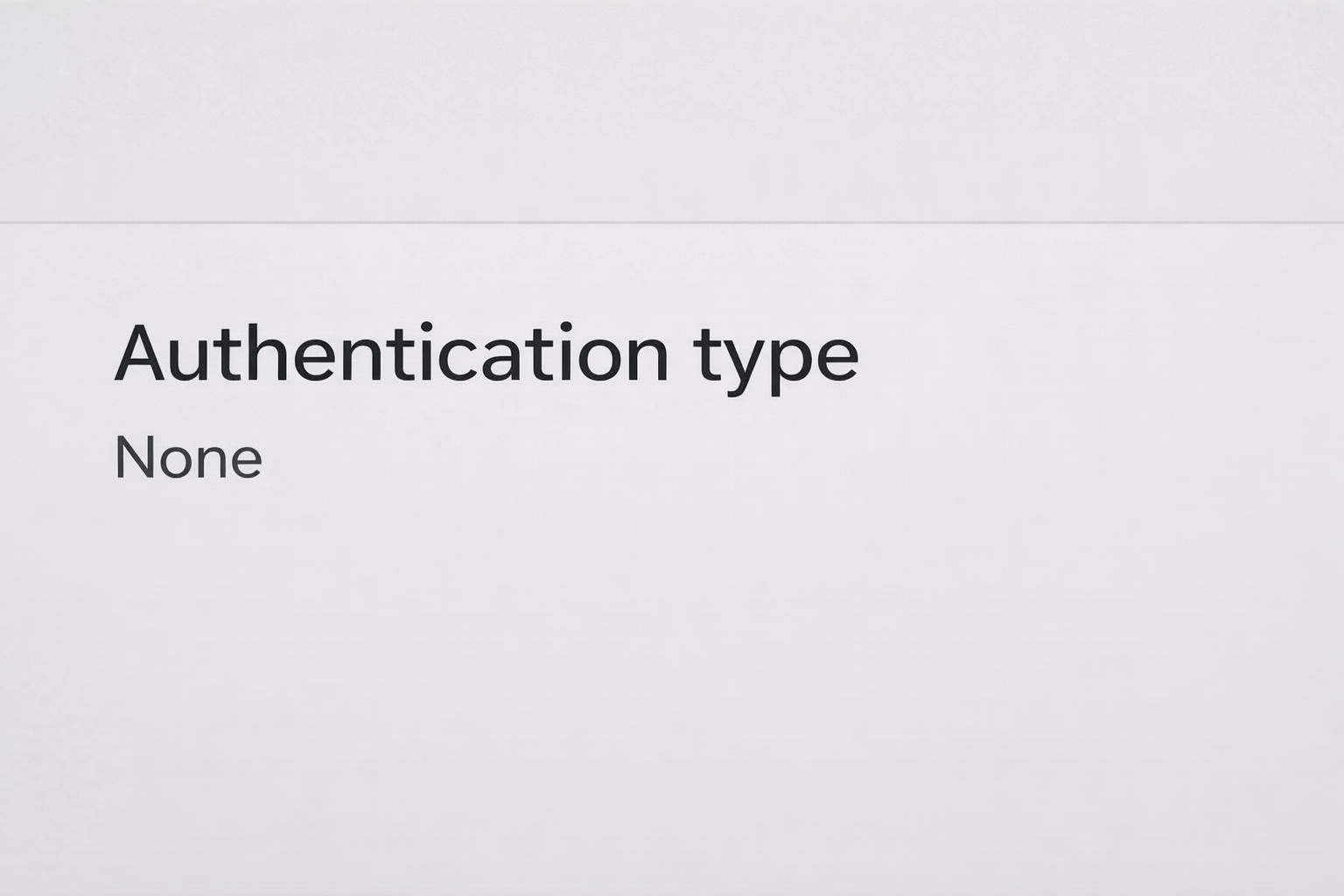
Set Authentication Type to None and save

Change the Authentication Type to None, then save the APN by tapping the menu (three dots) and selecting Save. Select the new key APN from the list to activate it.

Android APN screen showing Authentication Type set to None with save option

Configuring APN Settings on Apple iOS

Download KeySIM APN Profile

Download the custom configuration profile for Apple iOS. Make sure your mobile data plan is set to KeySIM before installing.

Download APN Profile (.mobileconfig)

Installation Steps

1
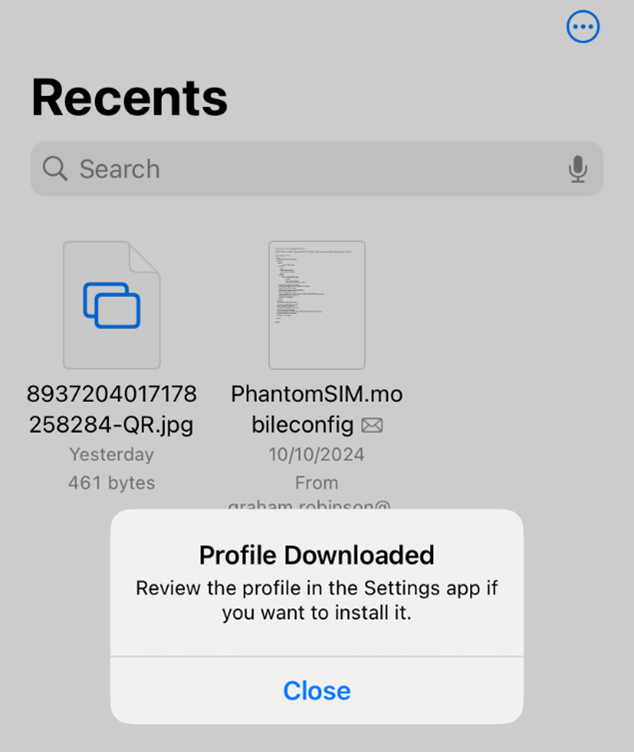
Set your mobile data plan to KeySIM, then tap the download button above

First go to Settings → Mobile Data → Mobile Data Plan and select your KeySIM card. Then tap the Download APN Profile button above. A Profile Downloaded confirmation popup will appear — tap Close and open your Settings app.

Apple iOS Files app showing Profile Downloaded confirmation popup after downloading the KeySIM APN profile

2
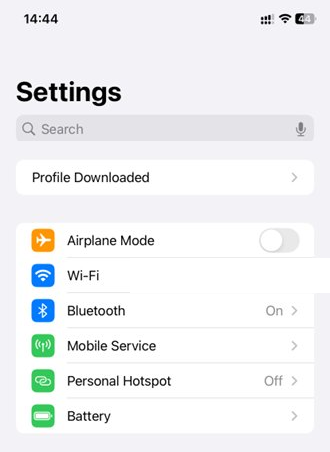
Open Settings and tap Profile Downloaded

Open the Settings app. You will see a new Profile Downloaded banner near the top — tap it to proceed to the installation screen.

Apple iOS Settings screen showing the Profile Downloaded option highlighted near the top of the menu

3
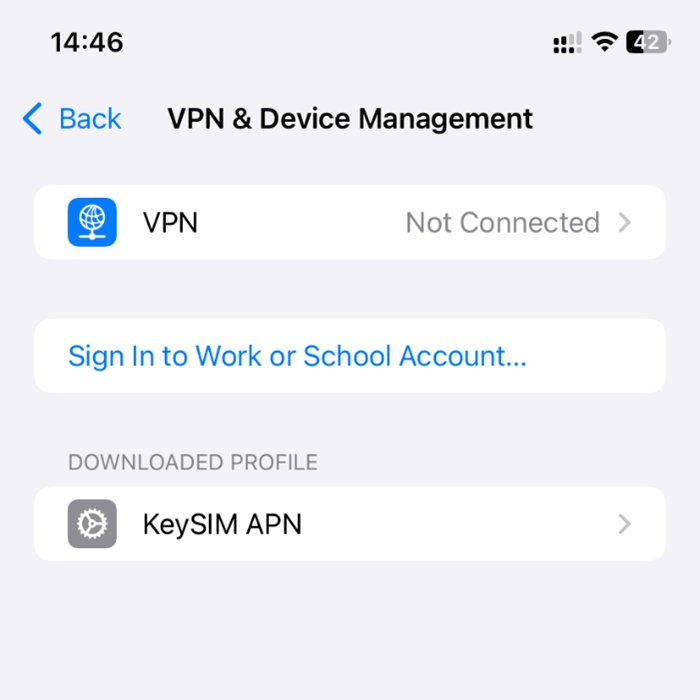
Tap the KeySIM APN profile under Downloaded Profile

You will be taken to the VPN & Device Management screen where you will see the KeySIM APN profile listed under Downloaded Profile. Tap it to open the installation screen.

Apple iOS VPN and Device Management screen showing the KeySIM APN profile listed under Downloaded Profile

4
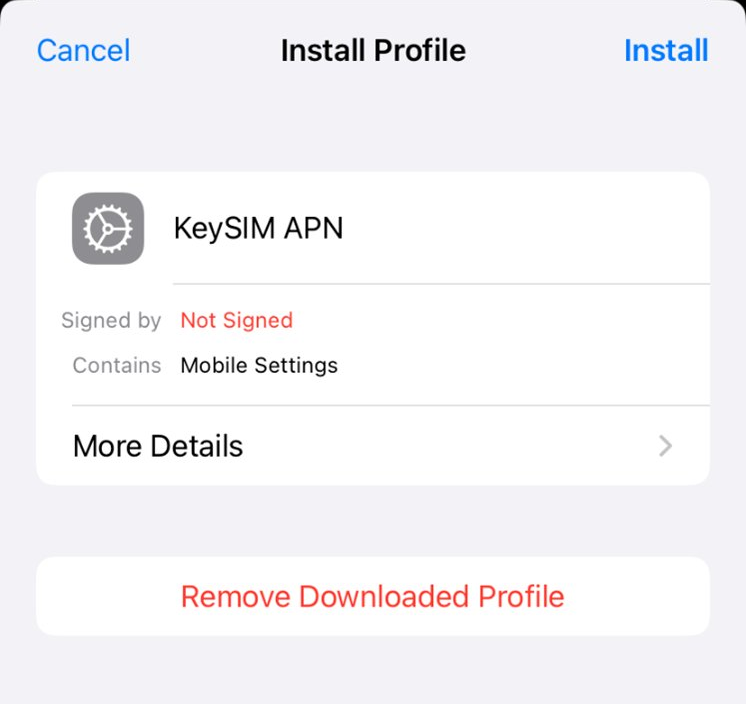
Tap Install in the top-right corner

The Install Profile screen will show the KeySIM APN profile details. Tap Install in the top-right corner to proceed. You may be prompted to enter your device passcode to confirm.

Apple iOS Install Profile screen showing the KeySIM APN profile with the Install button in the top right corner

5
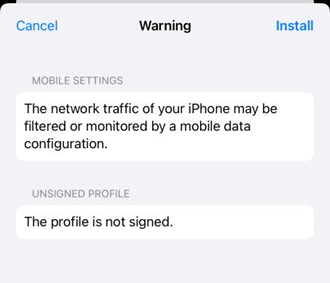
Review the warning and tap Install to confirm

iOS will display a Warning screen noting the profile is unsigned and that network traffic may be filtered by a mobile data configuration. This is expected — the profile only sets the APN name to key and does not monitor or intercept your data. Tap Install in the top-right to complete the installation.

Apple iOS Warning screen showing unsigned profile notice before final installation confirmation

How to Remove the APN Profile

If you need to remove the KeySIM APN profile — for example when switching to a different SIM card — follow the steps below.

1
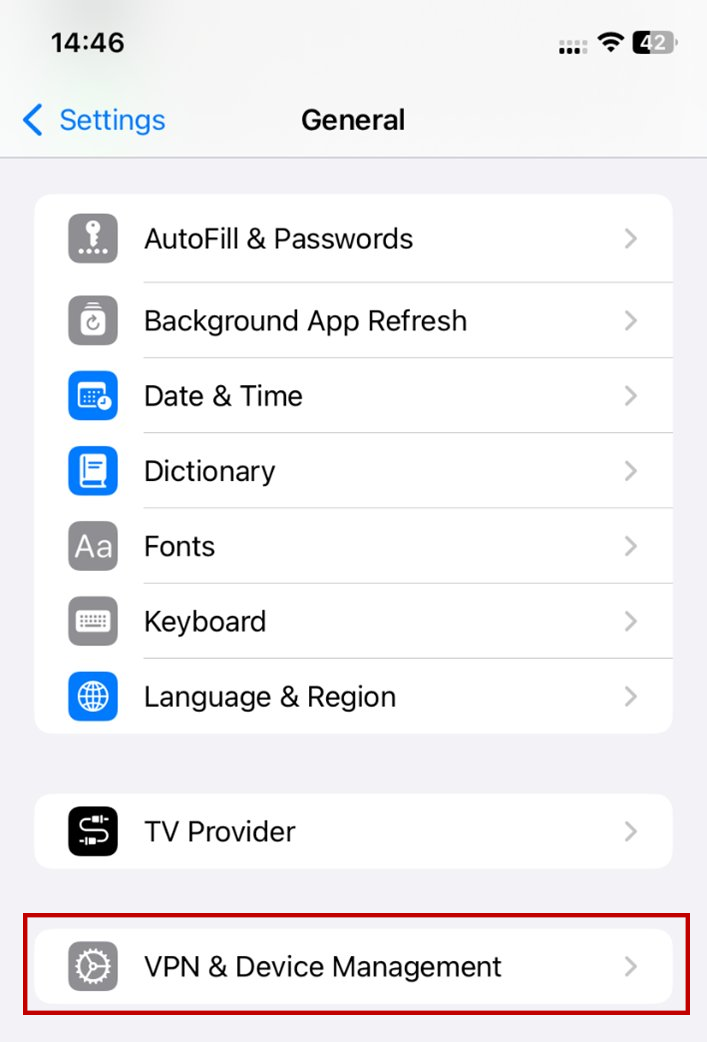
Go to Settings → General and tap VPN & Device Management

Open Settings, scroll down and tap General. Scroll to the bottom of the General menu and tap VPN & Device Management.

Apple iOS General settings screen showing VPN and Device Management option near the bottom of the list

2
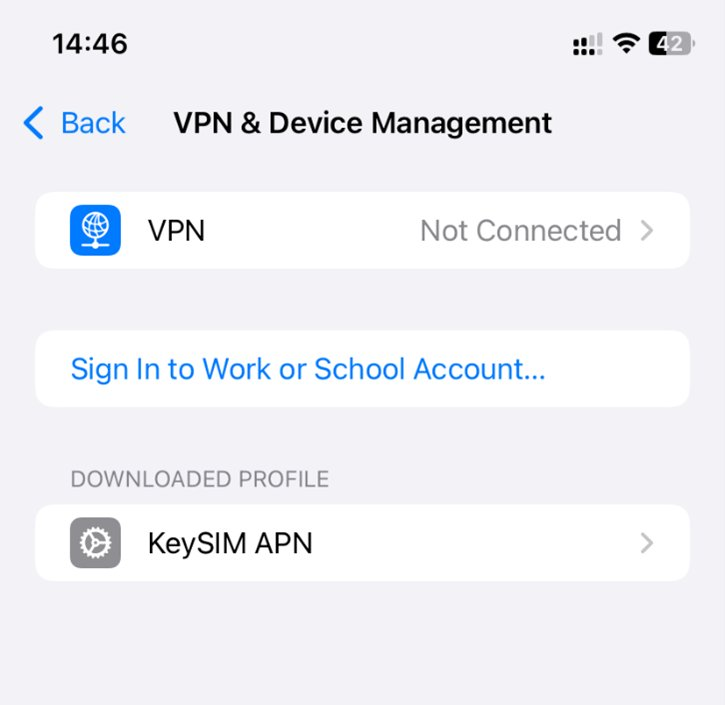
Tap the KeySIM APN profile

On the VPN & Device Management screen you will see the KeySIM APN profile listed. Tap it to open the profile details.

Apple iOS VPN and Device Management screen showing the installed KeySIM APN profile

3
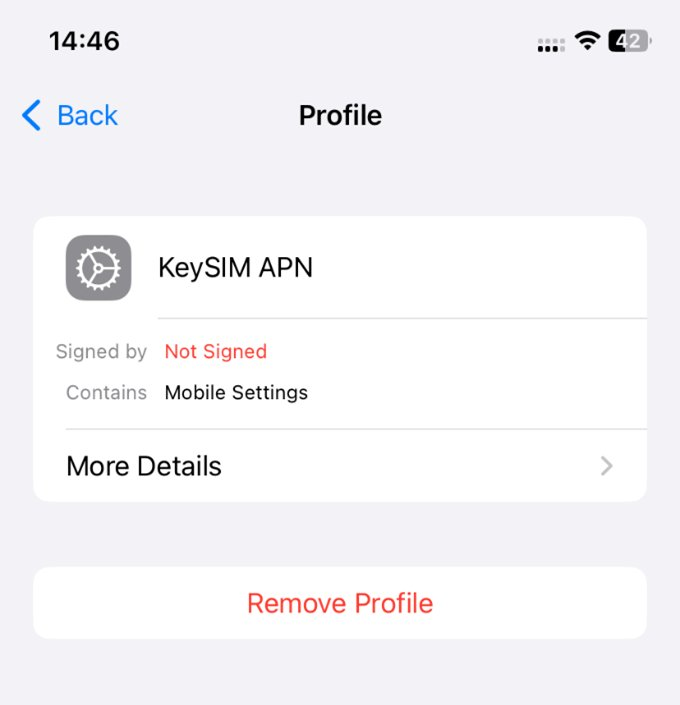
Tap Remove Profile and confirm

Tap the red Remove Profile button and confirm when prompted. The APN profile will be removed immediately from your device.

Apple iOS Profile screen showing the Remove Profile button to uninstall the KeySIM APN configuration

My Device Isn't Listed — Or I Still Need Help

The steps above cover the most common devices. If your device manufacturer isn't listed, the process is broadly the same — navigate to your mobile or cellular data settings and look for an Access Point Names or APN option, then add a new entry using the settings in the table above.

If you're still having trouble getting connected, our team is happy to help. Contact us and we'll walk you through the setup for your specific device.

Connected and Ready to Go?

Once your APN is configured, manage your KeySIM cards from the KeyOnline portal — monitor data usage, steer networks, and activate or deactivate SIMs instantly.

Explore KeyOnline Contact Support